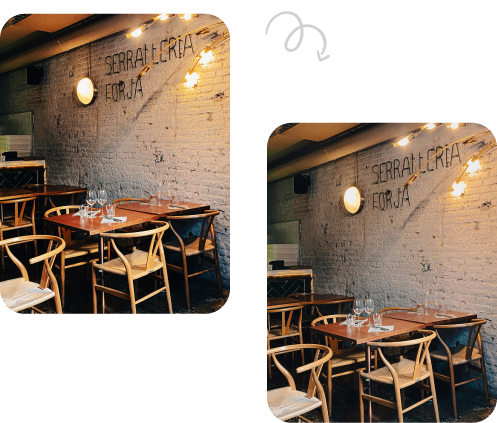

Removing the background of an image is one of the most common editing tasks in Photoshop, and thankfully, it’s easier than ever before. Whether you’re a professional designer, a content creator, an eCommerce seller, or someone just learning the ropes of Adobe Photoshop, knowing how to clear the background using Photoshop from a photo quickly can save tons of time and help you create clean, professional visuals.
In this guide, we’ll walk you through simple and fast methods for removing backgrounds using Photoshop – no advanced editing skills are needed!
Explore our Real Estate Image Enhancement services to make your property look appealing.
Why Remove Backgrounds in Photoshop?
Before we jump into the steps, it’s helpful to understand why this technique is so widely used:
-
For product photos (e.g. Amazon, eBay, Shopify), a white or transparent background makes the image look clean and focused.
-
For profile pictures, removing distractions creates a more professional impression.
-
For graphic design, isolated objects are easier to reuse in banners, ads, or collages.
-
For marketing, clear backgrounds keep the audience’s attention on the subject.
Let’s explore how to do it efficiently.
How To Clear the Background Using Photoshop- Easy Steps
Method 1: Using the ‘Remove Background’ Quick Action (Fastest for Beginners)
Photoshop’s built-in AI does most of the work for you. Here’s how:
-
Open Your Image in Photoshop
Launch Photoshop and load the image you want to edit. -
Unlock the Background Layer
In the Layers panel, double-click on the “Background” layer and rename it (or simply click OK). This unlocks the layer so you can edit it. -
Go to the Properties Panel
If it’s not visible, go to Window > Properties. -
Click ‘Remove Background’
Under the Quick Actions section, click Remove Background. Photoshop will automatically detect the subject and remove everything else. -
Refine If Needed
If the edges aren’t perfect, use the Select and Mask tool (found in the toolbar or via Select > Select and Mask) to smooth, feather, or shift the edge.
Bonus Tip: Save your file as a PNG to preserve transparency.
Method 2: Using Select Subject + Masking (More Control)
This is slightly more manual but still fast and offers better control over the selection.
-
Open and Unlock Your Image
Same as before-open your image and unlock the layer. -
Use ‘Select Subject’
Go to Select > Subject. Photoshop will analyze the image and highlight the main object/person. -
Click on ‘Select and Mask’
This opens a new window where you can fine-tune the selection using tools like:-
Refine Edge Brush Tool: Great for hair or fur.
-
Smooth: Helps remove jagged edges.
-
Feather: Softens edges for realism.
-
-
Choose Output: Layer Mask
At the bottom of the Select and Mask panel, set Output To: Layer Mask and hit OK. The background will now be hidden without deleting pixels. -
Save Your Image
Use File > Export > Export As and choose PNG format if you need transparency.
Method 3: Using the Pen Tool (For Precise Selections)
If you’re working with simple, sharp-edged subjects (like a product), the Pen Tool offers ultimate precision.
-
Select the Pen Tool
Shortcut: Press P on your keyboard. -
Draw Around the Object
Carefully click around your subject to create an outline. This is time-consuming but super accurate. -
Convert Path to Selection
Once your path is complete, right-click and choose Make Selection. -
Apply a Layer Mask
With the selection active, click the Add Layer Mask button at the bottom of the Layers panel. Background-gone! -
Export as Needed
Save the image in your preferred format (PNG for transparency).
Read Also– Benefits of Outsourcing Real Estate Photo Editing Work
Bonus Tip: Use Background Eraser Tool (Optional)
This older method is less precise but sometimes useful:
-
Select the Background Eraser Tool (under Eraser Tool).
-
Set Limits to “Find Edges” and Tolerance around 25-50%.
-
Click and drag over the background. The tool erases only background pixels.
Use this only if you don’t get good results with AI-based tools.
Pro Tips for Cleaner Results
-
Zoom in while masking to catch missed spots.
-
Use feathering for natural-looking edges.
-
Duplicate your layer before editing so you always have a backup.
-
Avoid JPEG for final exports if transparency is required-use PNG or PSD.
Conclusion
Photoshop offers multiple fast and effective ways to remove backgrounds, depending on your skill level and project needs. Whether you’re using the Quick Action feature for a one-click solution or diving deep with the Pen Tool for detailed work, background removal is now faster and smarter than ever.
With a bit of practice and the right tools, you can turn any image into a professional, polished asset in just a few minutes.
FAQs How To Clear the Background Using Photoshop
1. What is the easiest way to remove a background in Photoshop?
The easiest way is using the ‘Remove Background’ Quick Action in the Properties panel. It’s fast, automatic, and requires no prior Photoshop experience.
2. Can I remove the background without deleting it?
Yes, by using Layer Masks, you can hide the background non-destructively. This allows you to make changes or reverse edits anytime.
3. Why doesn’t the ‘Remove Background’ option appear?
Make sure your layer is unlocked, and check that you have the Properties panel visible under Window > Properties. Also, update Photoshop if needed.
4. Which file format keeps a transparent background?
Use PNG, PSD, or TIFF to preserve transparency. JPEG does not support transparency and will fill empty areas with white.
5. Can I remove background from complex images like Grass in the garden?
Yes! Use Select Subject followed by Select and Mask. Use the Refine Edge Brush Tool for detailed areas like grass strands.